Last Update: 16/01/2026
License & Connection
To use the ARShades Shopify Plugin, you must connect it to your ARS account using a TOKEN ID. This connection authorises the plugin to access and query the 3D models present in the ARShades Library.
Connecting Your Account
When you first install the plugin, you will be prompted to enter your license TOKEN ID.
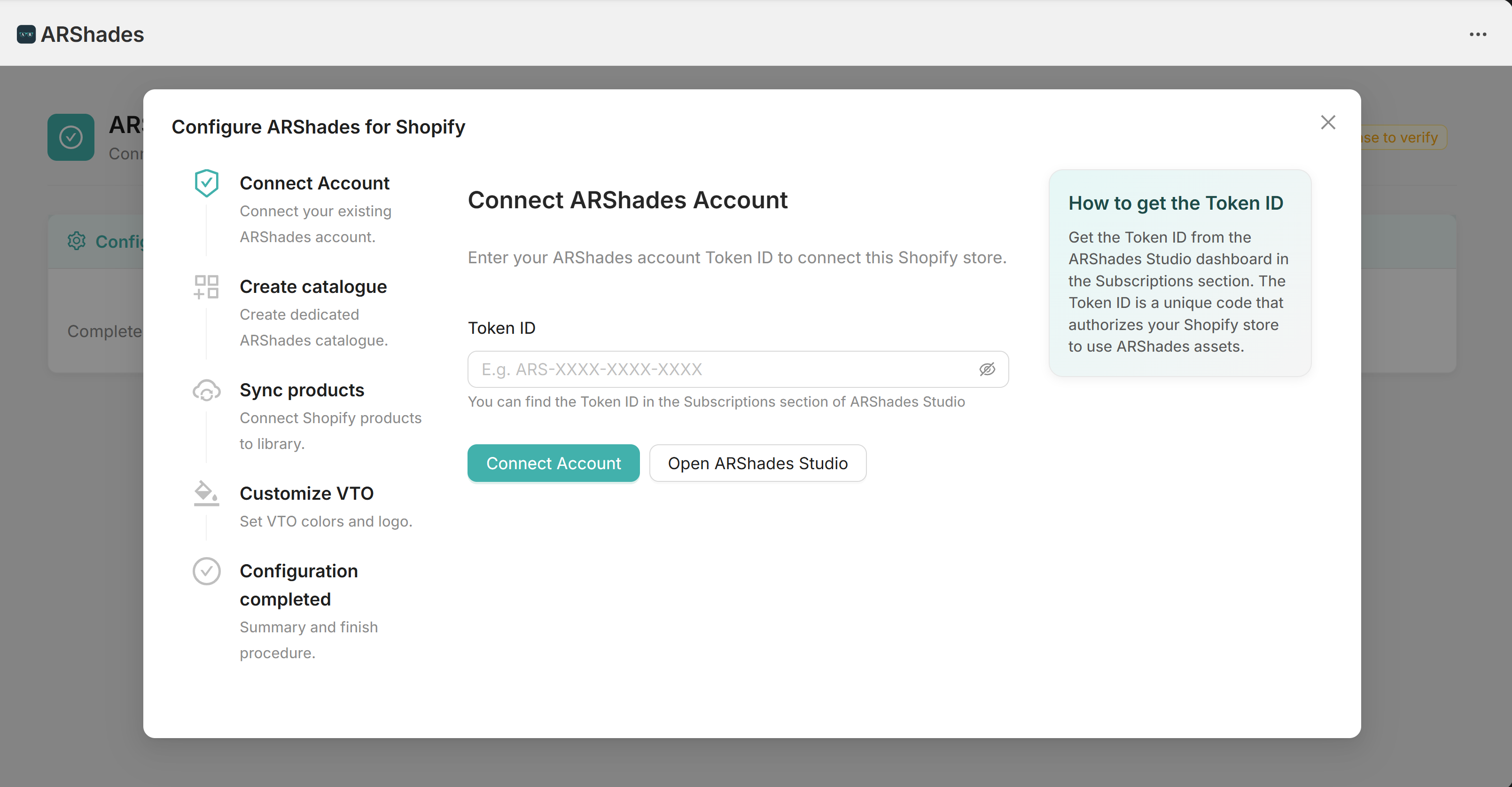
-
Find your TOKEN ID: Log in to your account on the ARShades Studio Platform and navigate to the Subscriptions section. View the details and copy your TOKEN ID.
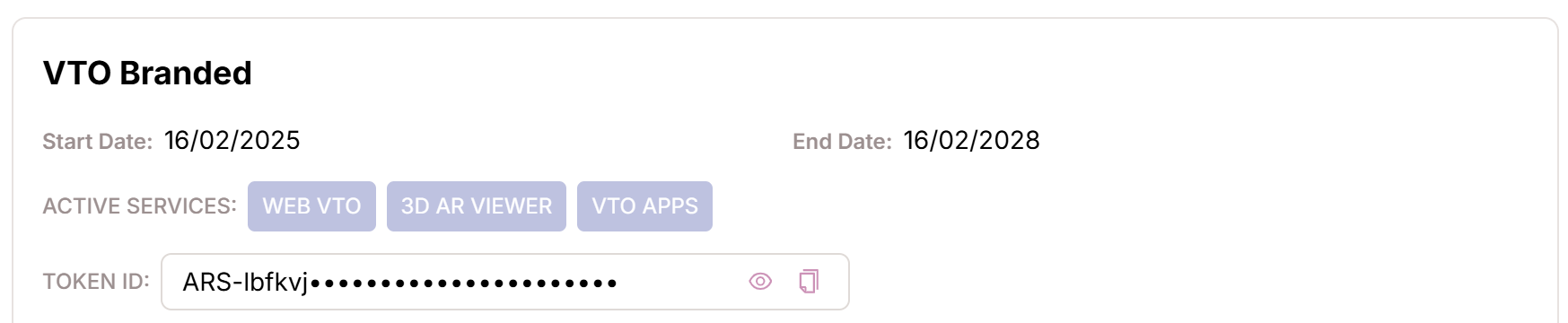
-
Enter the Key: Paste the key into the designated field in the Shopify Plugin setup screen.
-
Validate: Click on Connect. The system will verify the key immediately.
Note: The system will check not only the validity of the Token ID but will also verify that the website domain is amongst those authorised to use the Plugin in your license.
Managing Your License
Once connected, you can view your license status at any time by navigating to the License tab in the sidebar menu.

License Details
The License page displays:
- Status: Indicates if the license is Active.
- Remaining Days: The number of days until the current license expires.
- Authorised Domains: The number of domains enabled to use the plugin.
- Data Consumption: The current bandwidth usage (in MB) compared to the limit provided by your plan.
Removing or Changing a License
If you need to switch accounts or update your key, you can remove the current license.
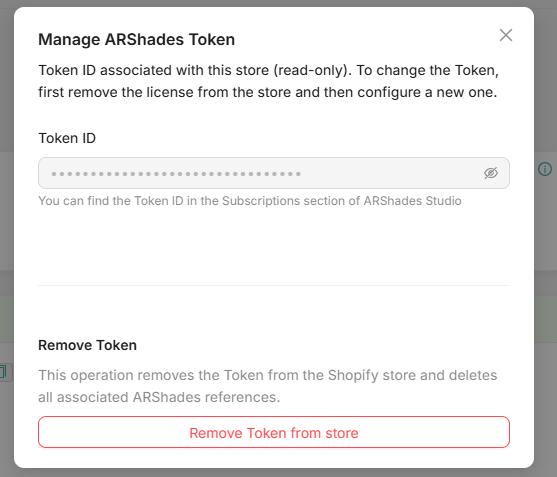
- Navigate to the License page.
- Click the Remove License (or "Disconnect") button.
- Confirm the action.
- You will be redirected to the initial setup screen where you can enter a new key.
Removing your license will temporarily disable the display of VTO/3D content on your online store until a valid license is reconnected.