Last Update: 16/01/2026
Feature Navigation
Once the license is connected, the full set of ARS features becomes available. The two most critical areas you will use daily are the Assets manager and the Customization studio.
Managing Assets
The Assets page is your product command centre. This is where you synchronise products from your Shopify store with the ARShades Library.
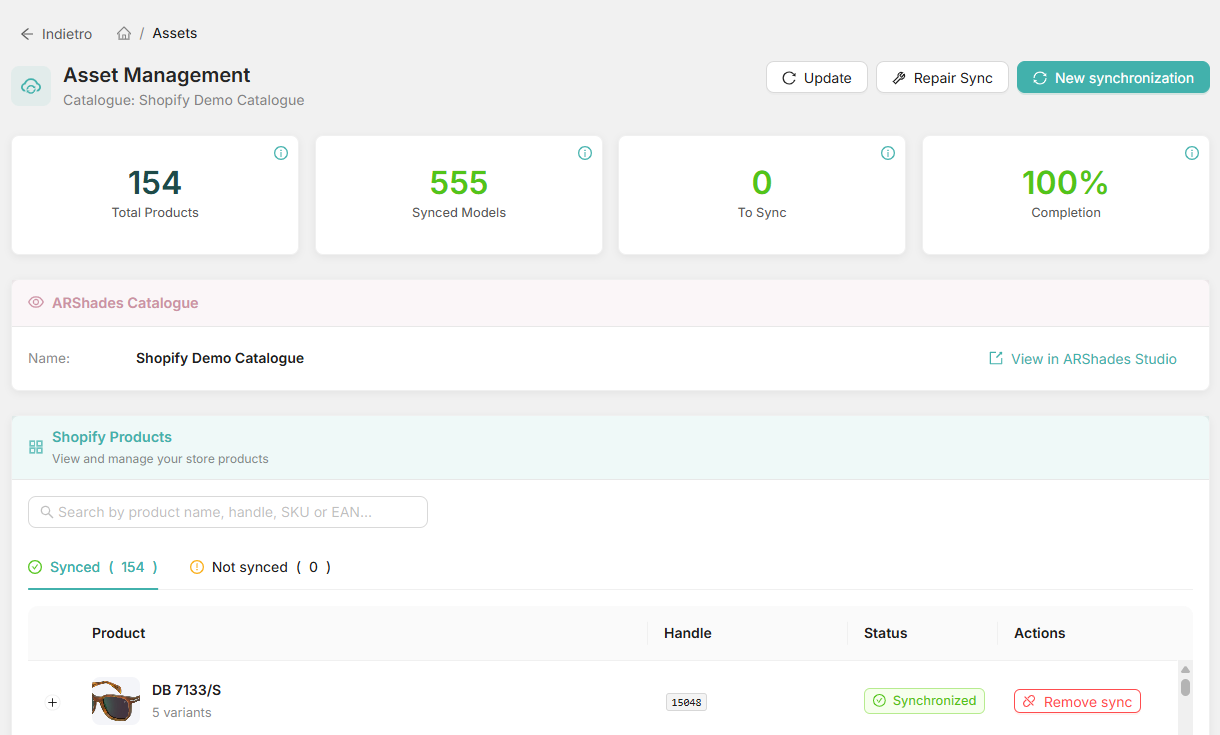
Manage your product synchronisation:
- Update/New Synchronisation: Synchronise the latest product data from Shopify.
- Repair Sync: Maintenance tool to reconcile any discrepancies between Shopify and ARS.
- View Studio Catalogue: Direct link to your catalogue on ARShades Studio.
- Filter and Search: Find products by name, SKU, or EAN.
- Manage Variants: Expand products to see the synchronisation status of individual variants (Synchronised/Not Synchronised).
Detailed instructions on asset management can be found in the Catalog & Assets section.
Customising the Experience
The Customization page allows you to configure the appearance of the Virtual Try-On (VTO) and test it directly on your theme.
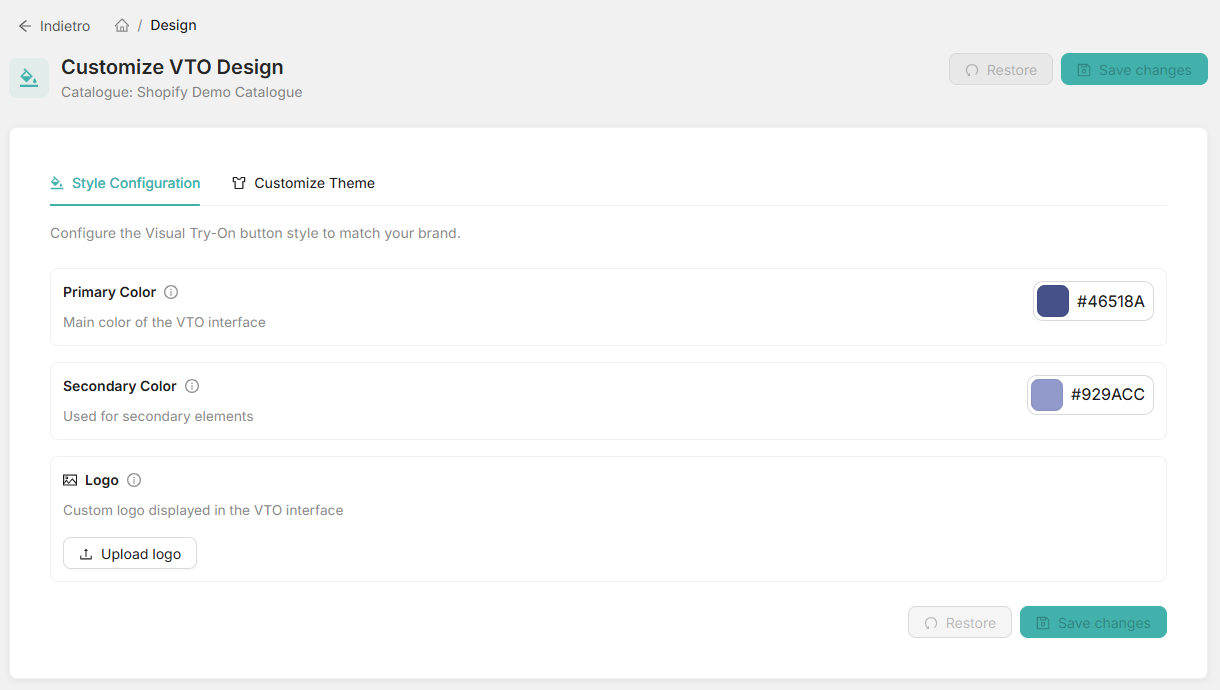
This section is divided into two main areas:
1. Style Configuration (Design)
Here you define the visual identity of the VTO interface:
- Colours: Set the Primary, Secondary, and Background Colour of the interface.
- Logos: Upload your custom brand logo and the policy logo.
- Restore/Save: Ability to revert to default settings or save current changes.
2. Customise Theme (Preview)
A powerful tool to see your changes in action:
- Select Product: Choose a product from your synchronised catalogue to use as a test.
- Open Theme Editor: Directly launch the Shopify Theme Editor on the page of the selected product.
Learn more about how to customise your integration in the Customization section.
Typical Workflow
A common workflow for setting up new products is:
- Sync: Go to Assets and synchronise your Shopify catalogue.
- Verify: Check in the "Synchronised" table that the variants have a green tick.
- Design: Go to Customization -> Style Configuration to set the brand colours.
- Test: Switch to the Customise Theme tab, select the newly synchronised product, and click on Open Theme Editor.
- Publish: In the Shopify editor, add/place the ARS block and save.