Last Update: 20/08/2026
ARPDMeter License
To use the ARPDMeter component in your storefront, the module must be enabled on your ARShades licence. This guide explains how to verify its status and what to do in each scenario.
Licence Scenarios
Your ARShades licence can enable ARPDMeter in three different ways:
| Scenario | Description |
|---|---|
| ARPDMeter only | Only the ARPDMeter module is enabled. VTO features (catalogue, sync, design) are not part of the licence. |
| ARPDMeter + VTO | Both VTO and ARPDMeter are enabled on the same licence. |
| VTO & 3D Viewer only | Only VTO and 3D Viewer are enabled. ARPDMeter can be added to your ARShades agreement. |
In every scenario, ARPDMeter must show as Active to work in the storefront.
Verifying Activation
From the Initial Setup Wizard
When you complete the initial configuration wizard, the final screen shows a summary of the enabled modules. On an ARPDMeter-only licence, you will see:
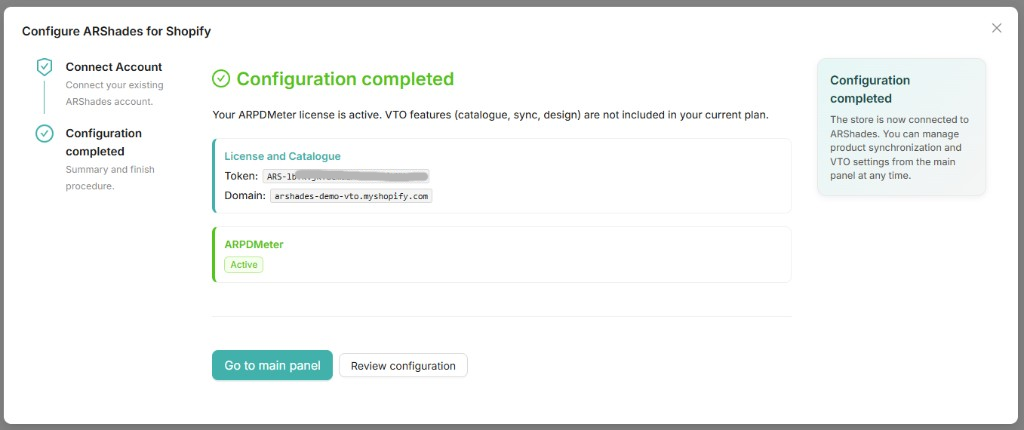
The screen clearly shows:
- The Token and Domain linked to the license.
- ARPDMeter status: Active.
- A notice if VTO features are not enabled on the licence.
From the License Page
After initial setup, you can check module status at any time in the Enabled services section of the app's License page:
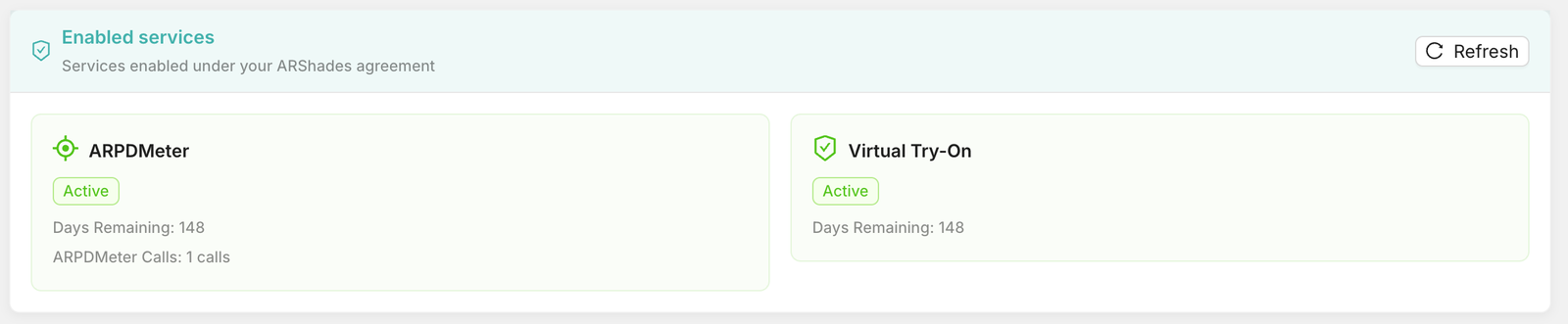
From this screen you can verify:
-
ARPDMeter
- Licence status (Active / Not enabled).
- Days remaining on the licence.
- Number of ARPDMeter calls performed.
-
Virtual Try-On
- Whether the VTO service is enabled on the same licence, and its remaining days.
-
ARPDMeter Calls
- Current measurement consumption.
- Licence reference period.
- Direct link to ARShades Studio for full details.
Services that are not part of your licence are simply not listed here. To have one added, contact your ARShades reference or open a ticket from ARShades Studio.
Status Reference
| Status | Meaning | Recommended Action |
|---|---|---|
| Active | Module is enabled and operational in the storefront. | Proceed with component setup in Theme Editor. |
| Not enabled | Module is not part of your current ARShades licence. | Contact ARShades to have it added to your agreement. |
| Expired | Licence was active but has expired. | Check the licence dates in ARShades Studio and contact ARShades for renewal. |
What Happens Without an Active License
If the ARPDMeter module is not active, the block in the Theme Editor will display a warning message instead of the functional component:

The notice states that an active ARPDMeter licence is required. If you see it, open the License page in the app and check the Enabled services section; if ARPDMeter is not listed, the module is not part of your licence yet.
Without an active ARPDMeter licence, the block will be visible in the Theme Editor but will not function for store visitors.
Pre-Publish Checklist
Before making ARPDMeter visible to customers:
- Confirm ARPDMeter status is Active under Enabled services on the License page.
- Check the remaining days on the licence.
- Add the ARPDMeter block in the target theme section/template.
Next Step
Configure the component appearance and behaviour: ARPDMeter Component.