Last Update: 15/09/2026
New Synchronisation
New Sync scans your Shopify catalogue and links the products it can match to models in the ARShades Library.
How Matching Works
A Shopify product is matched to an ARShades model by its SKU, EAN or UPC. Nothing else is used: not the product name, not the image. A product whose codes are missing or wrong will not be matched, however obvious the model looks to you.
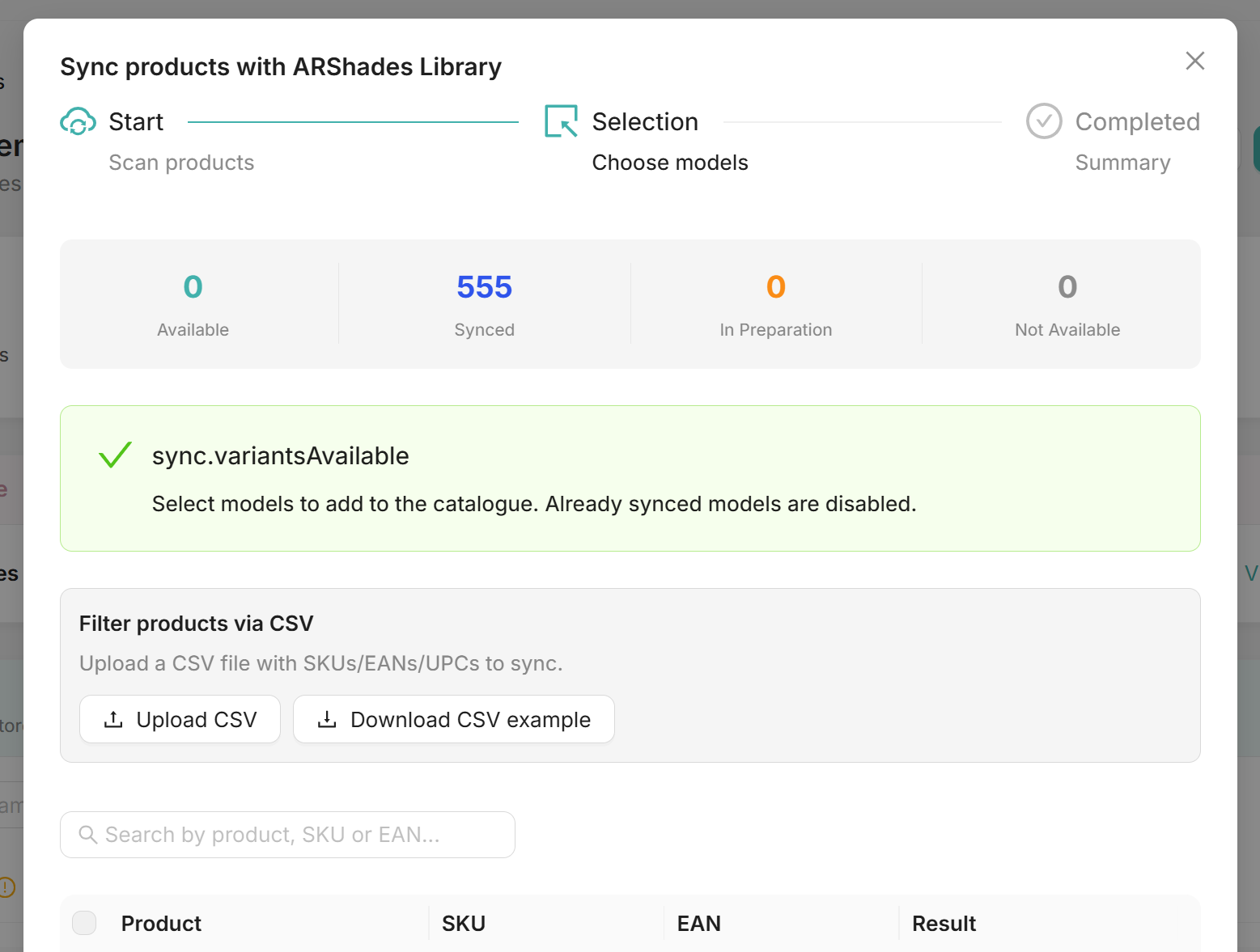
Running a Sync
1. Start the scan
From the Assets page, click New Sync. The plugin reads the products in your store and compares their codes against the ARShades Library.
2. Read the results
The scan returns a table with, for each product, the name it has in Shopify and the outcome of the match — whether a model is available, is being prepared, or does not exist.
Only what is available can be selected. If something you expect is missing, check its codes in Shopify first: a mistyped EAN is the most common reason.
For a long catalogue, use the search box, or filter by uploading a CSV with the list of codes you care about — the table then shows only those.
3. Select and confirm
Tick the products you want, then confirm. The plugin creates the links and tells you how many models were synchronised.
The selection stops when you reach the number of SKUs your subscription allows. Two things are worth knowing about that limit:
- It counts variants, not products. A frame in six colours takes six places.
- It is measured on what is already in your linked catalogue, so what is left is your allowance minus what you have already synchronised.
Afterwards
The linked products appear on the Assets page with their status. What has been written on the ARShades side is a catalogue of products and variants; your Shopify products are untouched.
If a product shows as synchronised but the try-on does not appear in your storefront, that is what Repair Sync is for.